What Is DriverDock?

Back up your Windows drivers before formatting your computer. Restore them with a single click, even when you don’t have an internet connection.
DriverDock is a free, lightweight, and portable tool that backs up your Windows drivers and restores them within seconds after a clean installation. Even if you don’t have a Wi‑Fi driver, you’re covered.
The Problem After Formatting
You format your computer and think, “I’ll download the drivers again once I’m online.” Then Windows starts—and there is no driver for your Wi‑Fi adapter. No internet, no drivers, and no easy way out. Your only option is to find another computer and search for the correct files one by one using a USB drive.
DriverDock was designed to prevent this from happening. Back up your drivers in under 30 seconds before formatting, then reinstall them just as quickly and completely offline afterward.
DriverDock Features
Fully Portable — A single .exe file. No installation required and no traces left behind. Run it directly from a USB drive.
Smart Driver Filtering — Shows only drivers actively in use and skips unnecessary driver packages accumulated by Windows over time.
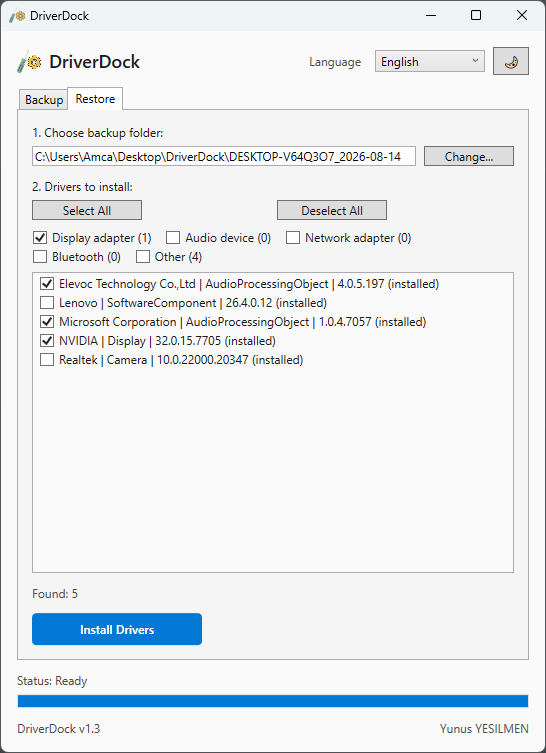
Installed Driver Detection — During restoration, drivers that are already installed are moved to the bottom of the list. This lets you focus only on the ones that are actually missing. You can also reinstall already-installed drivers if you wish.
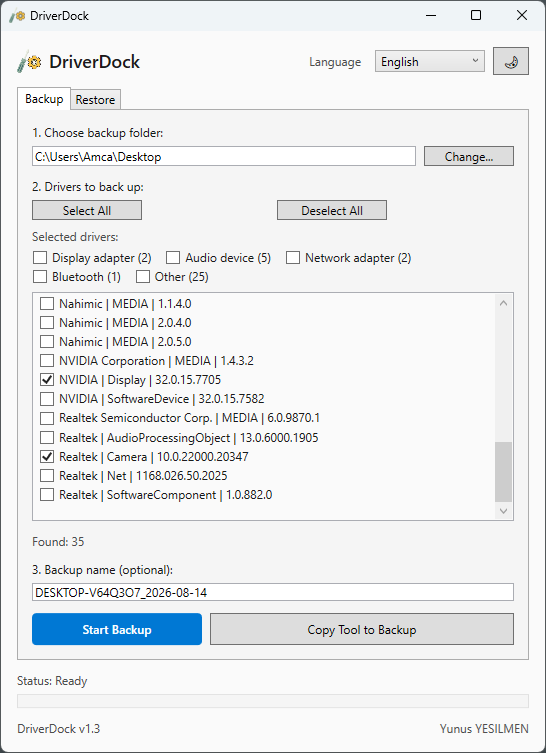
Detailed Selection — Select all drivers, clear all selections, filter by category (graphics, audio, network, Bluetooth, and other), or select drivers individually.
“Copy Program to Backup” Button — Copies DriverDock.exe itself to your backup folder, so you can run it directly from your USB drive after formatting without having to search for it elsewhere.
Clean, Two-Tab Interface — Backup and Restore. There is nothing else to learn.
Light and Dark Modes — Choose either a light or dark theme.
Support for Five Languages — English, Turkish, Spanish, French, and Russian. The language can be changed instantly within the application without restarting.
100% Offline — No telemetry, update checks, or data collection. Your drivers go only where you tell them to.
| Feature | Value |
|---|---|
| Program Name | DriverDock |
| Version | 1.3 |
| Supported Systems | Windows 10 / 11 (32-bit and 64-bit) |
| Installation | Not required — single portable file |
| File Size | ~441 KB |
| License | Freeware |
| Developer | Yunus YESILMEN |
| Contact | yunusyesilmen.com |
How Does DriverDock Work?
Backup
- Open the program. It requires administrator privileges and will display a UAC prompt.
- The program automatically scans and lists the drivers associated with the actual devices on your system.
- Click “Change” to select the folder where the backup will be saved, such as your Desktop or a USB drive.
- Select the drivers to back up: choose “Select All,” filter by category (Graphics/Audio/Network/Bluetooth), or select them individually.
- Optionally enter a backup name. If left blank, the name will be generated as
ComputerName_Date. - Click “Start Backup.”
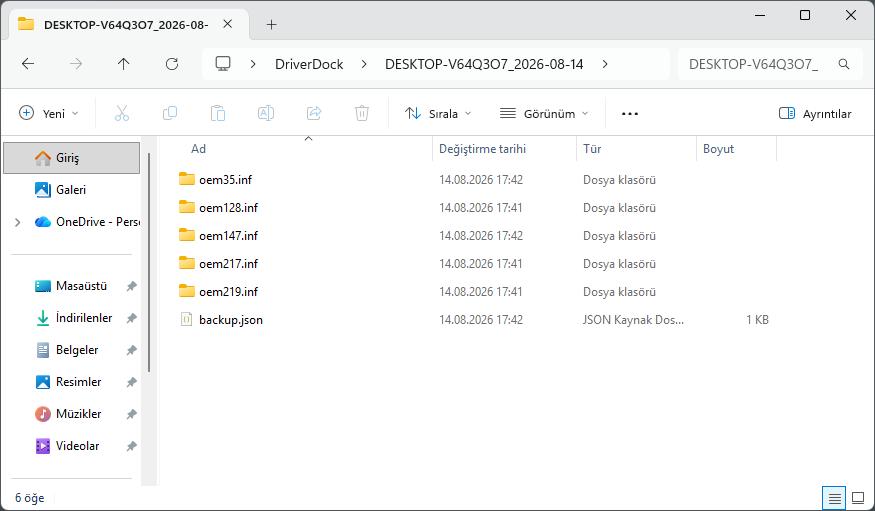
- The program backs up each driver into its own folder, such as
oemXX.inf\, and creates abackup.jsonfile. - Optionally use “Copy Program to Backup” to copy DriverDock into the same folder, so you won’t need to search for it after formatting.
Restore After Formatting
- Run
DriverDock.exefrom the backup folder. No internet connection is required. - Switch to the “Restore” tab and select the backup folder.
- The program reads
backup.jsonand lists the backed-up drivers. Do not deletebackup.json. - Smart detection moves drivers that are already installed on the computer to the bottom of the list and marks them as “(installed).” Missing drivers are moved to the top and selected automatically.
- Adjust the selection manually if desired.
- Click “Install Drivers.”
- The program installs the missing drivers one by one and displays an “Installation complete” message when finished.
DriverDock: Screenshoot